Hands-on Tutorial
Build and Post a 5-Slide Branded Carousel
Scenario
A small business generating 5 branded 1080×1920 vertical carousel slides using ZorgSocial AI Image Creator — from hook to CTA — then publishing directly via Manual Post on Instagram.
 CarouselRelated format
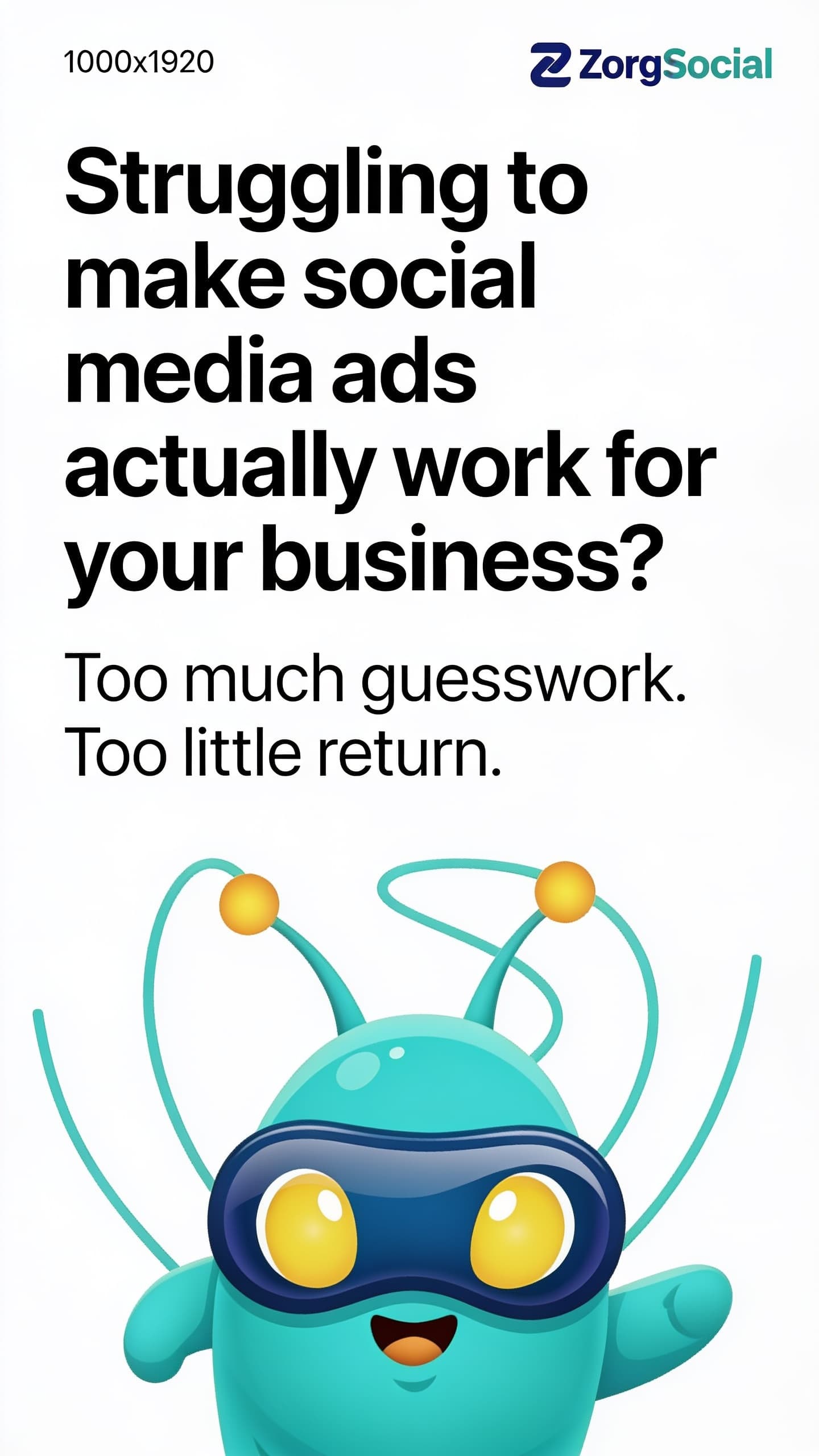
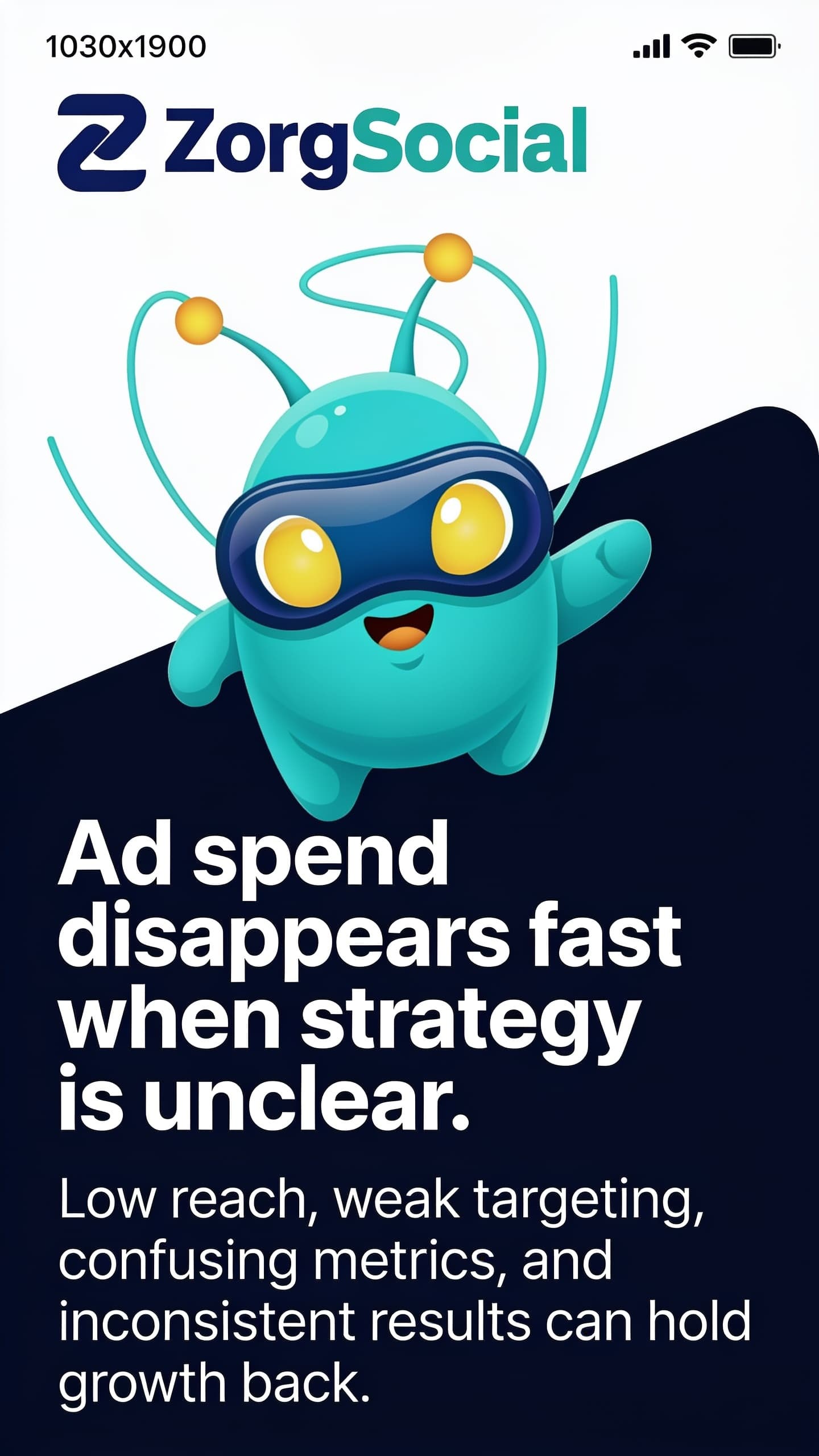
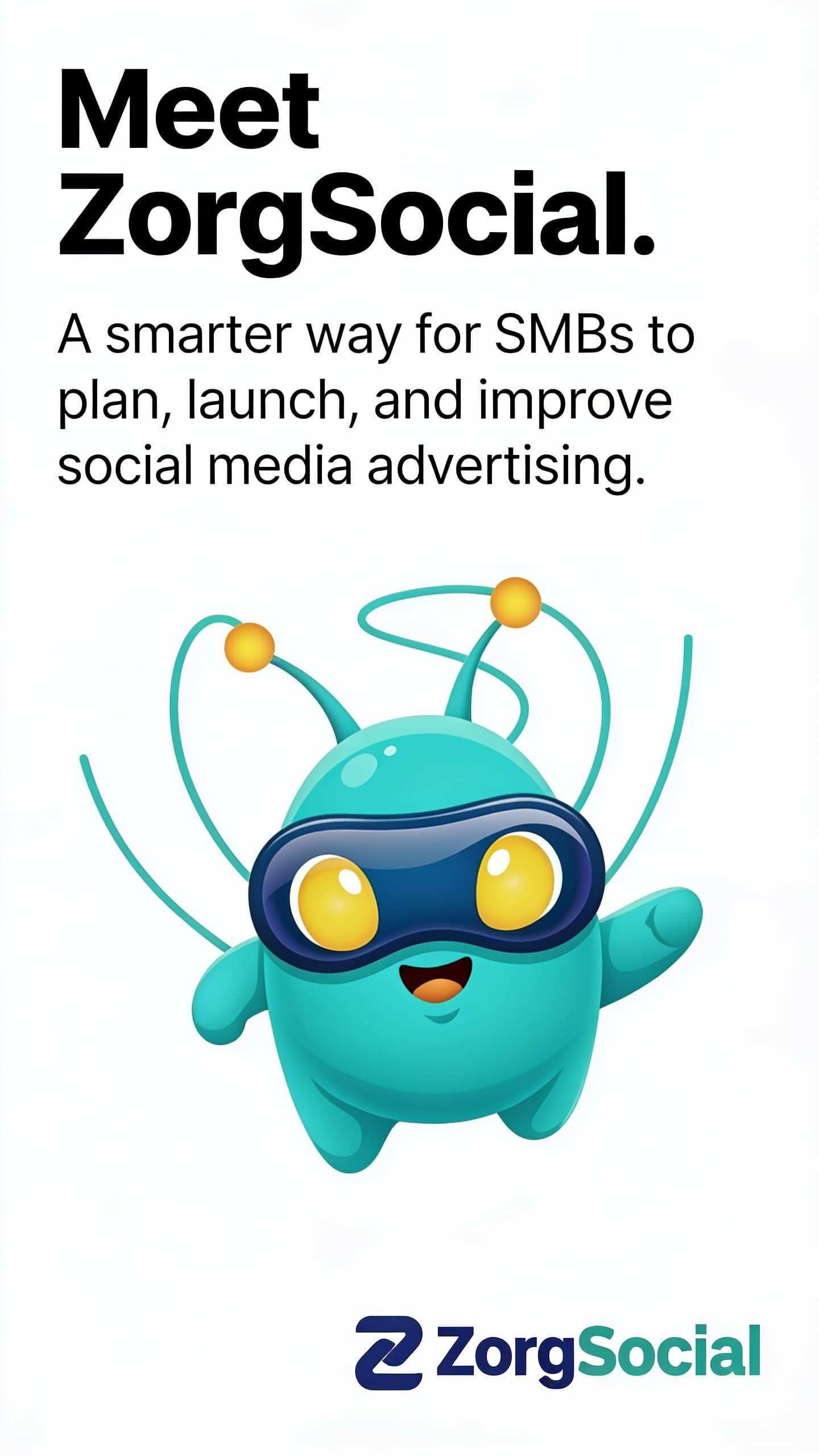
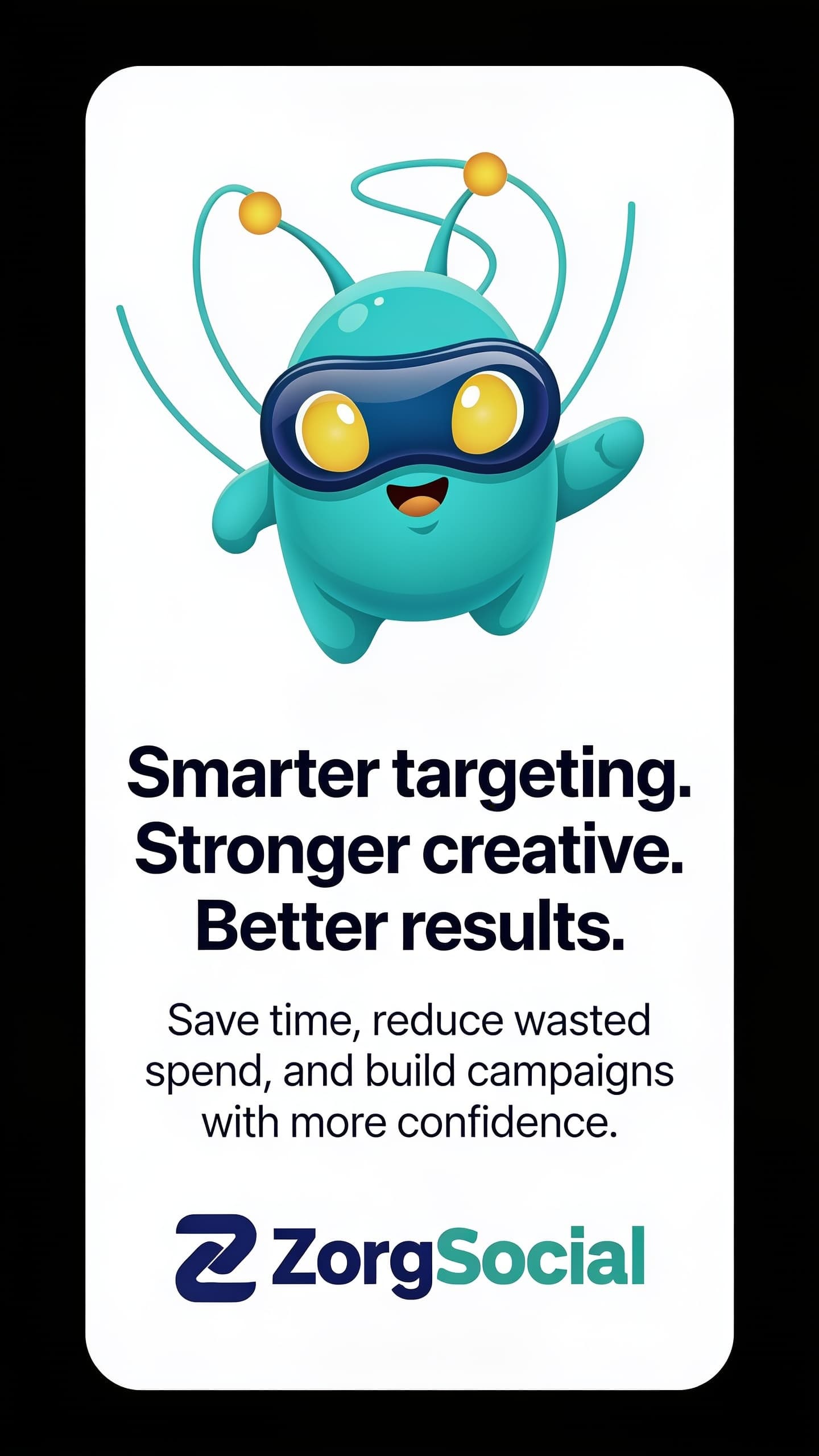
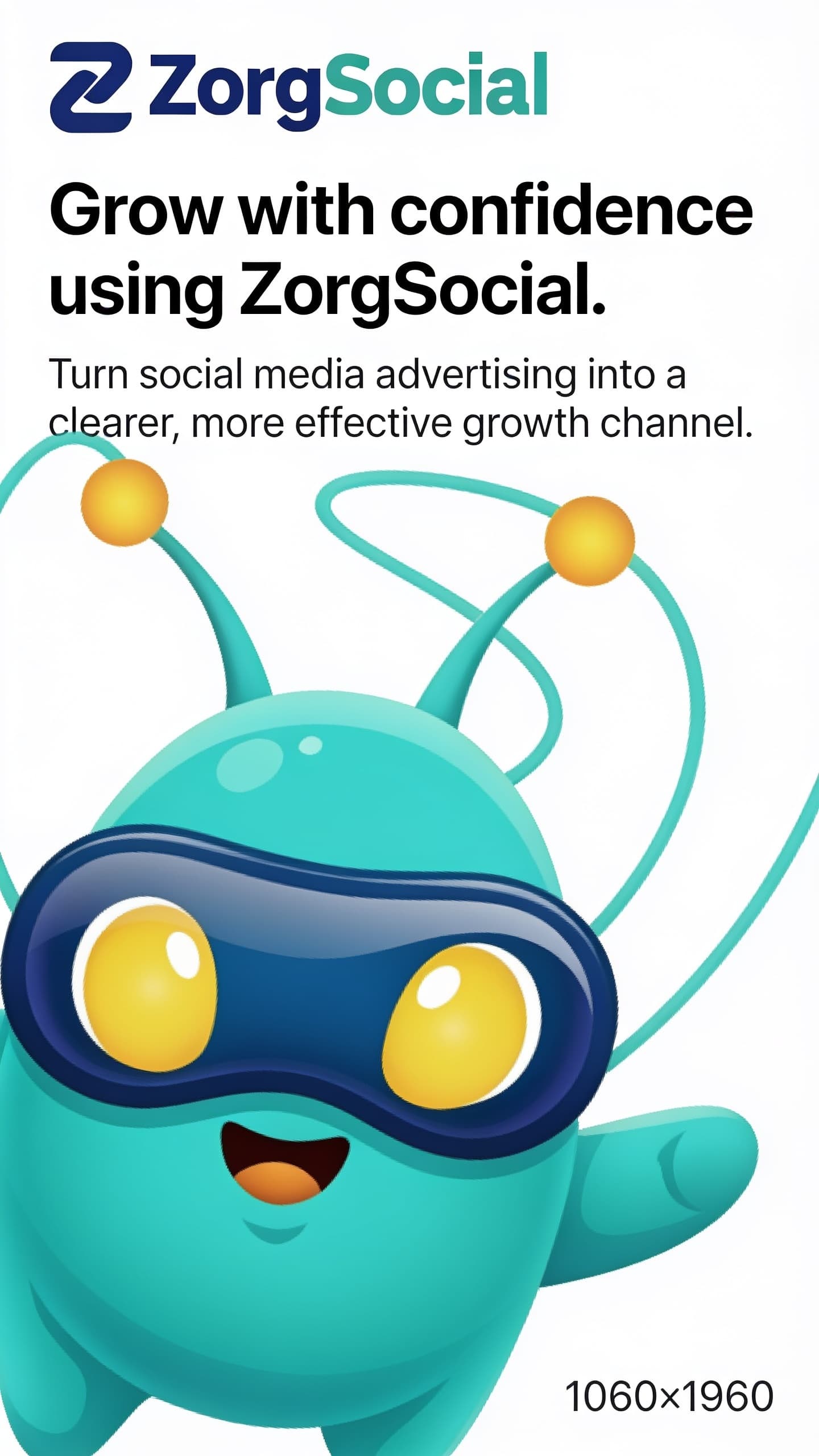
Carousel Preview
Steps
Plan Your Carousel Sequence
Define the 5-slide narrative arc before generating. Structure it as: Hook → Pain Point → Solution → Benefits → CTA. For this tutorial: Slide 1 — "Struggling to make social media ads actually work for your business?"; Slide 2 — "Ad spend disappears fast when strategy is unclear."; Slide 3 — "Meet ZorgSocial — built to simplify and strengthen your social media advertising."; Slide 4 — "Smarter targeting. Stronger creative. Better results."; Slide 5 — "Grow with confidence using ZorgSocial."
Attach Reference Images
In ZorgSocial AI Image Creator, upload your brand reference assets. Attach the ZorgSocial logo and the Zorg mascot so the AI maintains visual identity consistency across all 5 slides. Consistent references ensure a cohesive look throughout the carousel.


Write Per-Slide Prompts
Write a separate prompt for each of the 5 slides using seedream_image_edit. Each prompt must specify: format (1080×1920 vertical), slide number and theme, headline text, supporting copy, and visual direction (modern, bold, clean, high-contrast, mascot featured prominently, logo included, optimized for mobile readability). Submit all 5 generation jobs together.
Generate All 5 Images
Approve and submit all 5 generation jobs. Each slide uses seedream_image_edit with your attached brand references. Once all jobs complete, review each image for brand consistency: check mascot recognizability, logo placement, headline legibility, and overall visual cohesion across the full carousel sequence.
Post via Manual Post on Instagram
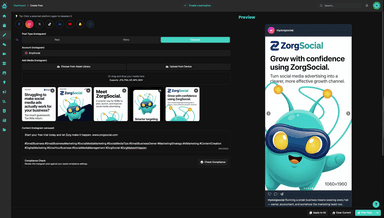
Open the Manual Post feature in ZorgSocial. Select Instagram as the platform and choose the Carousel post type. Upload or select the 5 generated images in sequence (slide 1 → 5). Add your caption and any hashtags in the description field. When ready, click "Post Now" to publish immediately or "Schedule" to set a future date and time.
Try It Now
Build this ad in ZorgSocial
Use the AI-powered Image Generator to apply what you learned in this tutorial.